Knowledgebase articles
- Welcome to the Knowledge Base
- Training
- Welcome to Workbooks Support: Your Go-To Guide
- Workbooks Customer Hub
- Getting Started
- Preferences
- Activities
- Cases
- Email
- Importing Data
- Leads
- Marketing
- Introduction to Marketing
- Mailshots
- Templates
- Event Management
- Compliance Records
- Spotler Integration
- What is Spotler?
- Navigating your Spotler homepage
- Introduction to GatorMail
- GatorMail Configuration
- GatorMail Hard Bounces
- Advanced Features
- Sending Emails in GatorMail
- GatorCreator
- Setting up the Plugin
- Viewing Web Insights Data on your Form Layouts
- Domain Names and Online Activities
- Reporting incorrect Leads created through Web Insights
- Reporting on Web Insights data
- Using UTM Values
- Why aren’t Online Activities being created in the database?
- Why is GatorLeads recording online activities in a foreign language?
- GatorSurvey
- GatorPopup
- Dotdigital
- Integrations
- SFTP/FTP Processes
- Docusign Integration
- DocuSign Functionality
- Adobe Sign Integration
- Zapier
- Introduction to Zapier
- Available Triggers and Actions
- Linking your Workbooks Account to Zapier
- Posted Invoices to Xero Invoices
- Xero payments to Workbooks Tasks
- New Case to Google Drive folder
- New Case to Basecamp Project
- New Workbooks Case to JIRA Ticket
- Jira Issue to new Case
- 123FormBuilder Form Entry to Case
- Eventbrite Attendee to Sales Lead and Task
- Facebook Ad Leads to Sales Leads
- Wufoo Form Entry to Sales Lead
- Posted Credit Note to Task
- Survey Monkey responses to Tasks
- Multistep Zaps
- Email Integrations
- Microsoft Office
- Auditing
- Comments
- Using Postcode Lookup
- Data Enrichment
- Reporting
- Using Reports
- Advanced Reporting
- Reporting FAQs
- Transaction Documents
- Displaying & Adding Transaction Documents
- Copying Transaction Documents
- Transaction Documents Fields Help
- Transaction Documents Line Items Help
- Printing & Sending Transaction Documents
- Managing Transaction Document Currencies
- Managing Transaction Document Statuses
- Setting a Blank Default Currency on Transaction Documents
- Credit Notes
- Customer Orders
- Invoices
- Quotations
- Supplier Orders
- Sagelink
- Configuration
- Releases & Roadmap
- Workbooks Glossary
How and When to Use the “Force Sync” Option in Mail Sync
Using the Force Sync option tells Mail Sync and Workbooks to run an immediate, full synchronisation instead of waiting for the next scheduled sync cycle. Normally, the systems sync automatically in the background at set intervals, every 30 minutes, but there are situations where you might want to manually trigger it.
You would typically use Force Sync when:
-
You’ve just made important changes and need them reflected straight away (for example, newly created or updated contacts, meetings, or tasks).
-
Data looks out of date or inconsistent between Mail Sync and Workbooks.
-
A previous sync failed or was interrupted.
-
You’ve recently changed sync settings and want to make sure they’re applied immediately.
-
You’re troubleshooting and want to confirm whether syncing is working as expected.
Forcing a sync can help resolve delays or discrepancies without waiting for the next automatic run. It’s essentially a “refresh now” button that makes both systems reconcile their latest data immediately.
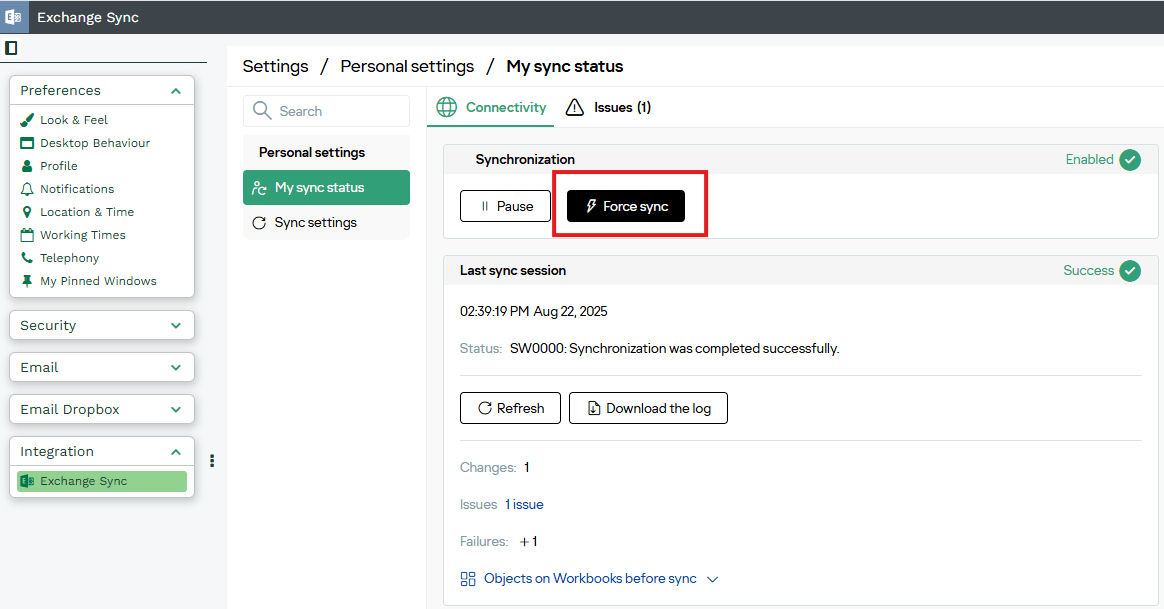
You can force the Mail Sync to synchronise to Workbooks by pressing the ‘Force Sync’ button at the top of your Mail Sync preferences found in Start > Preferences > Integration > Exchange Sync as shown below: